 Recap Studio
Activate your Pro license
Recording and editing are free. A one-time Pro license ($50) unlocks export to MP4 and GIF, on up to 3 Macs, with every future update.
Get your key
After you buy Pro, your license key is in your confirmation email. You can also find it any time in the customer portal.
Activate it
- Open Settings › License and click Upgrade to Pro. Clicking Export in the editor opens the same window.
- In the Unlock Export window, click Already have a license key? Activate it here.
- Paste your key into License Key and click Activate.
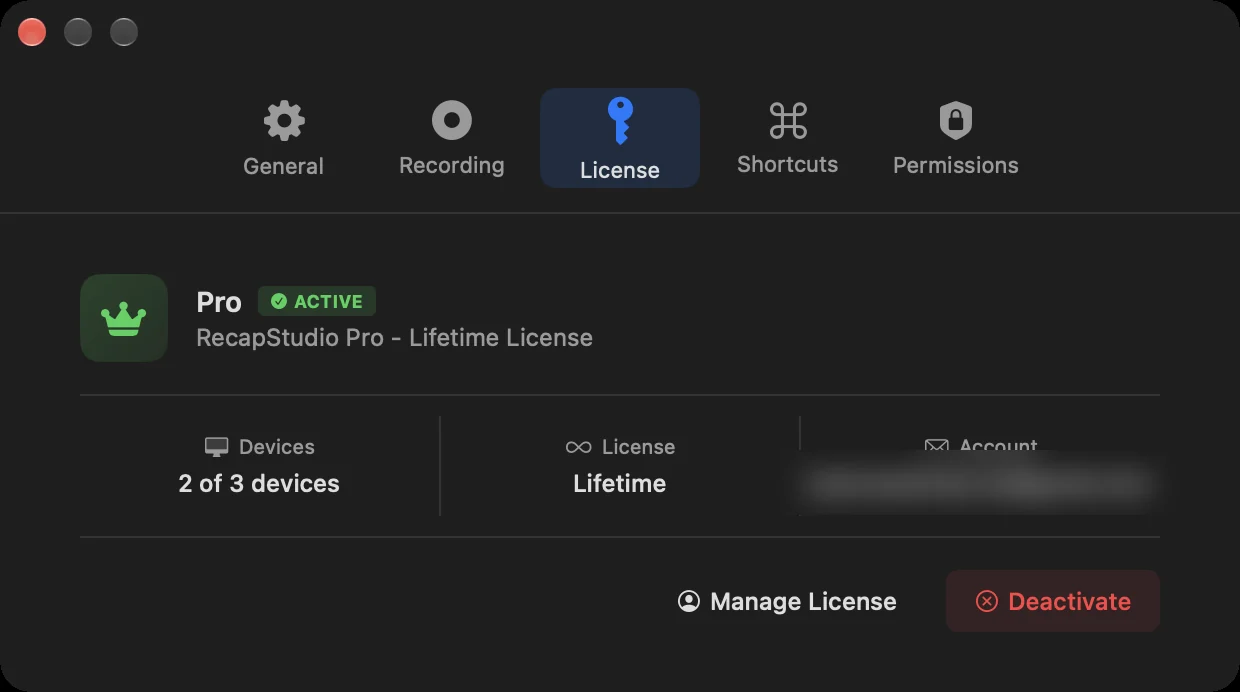
When it works, you’ll see License Activated! with your plan and how many devices are in use. Export is unlocked straight away.
Use it on up to 3 Macs
One license works on 3 Macs at the same time. Settings › License shows how many are in use. If you try a fourth, you’ll see Device Limit Reached. Free up a slot first, then click Try Again.
Move your license to a new Mac
- On the old Mac, open Settings › License and click Deactivate, then confirm.
- On the new Mac, activate your key as above.
If you no longer have the old Mac, click Manage Devices (or Manage License) to open the customer portal and remove it there.
Working offline
Recap Studio checks your license online about once a week. If you’re offline, Pro keeps working for up to 30 days after the last successful check. Connect to the internet once in a while to keep it active.
Common messages
- Invalid license key: check the key was copied in full, with no extra spaces.
- Device limit reached: deactivate the license on another Mac first.
- Network error: check your connection and try again.
Want a refund instead? See the refund policy. It covers 14 days from purchase.