 Recap Studio
Trim, cut and speed up
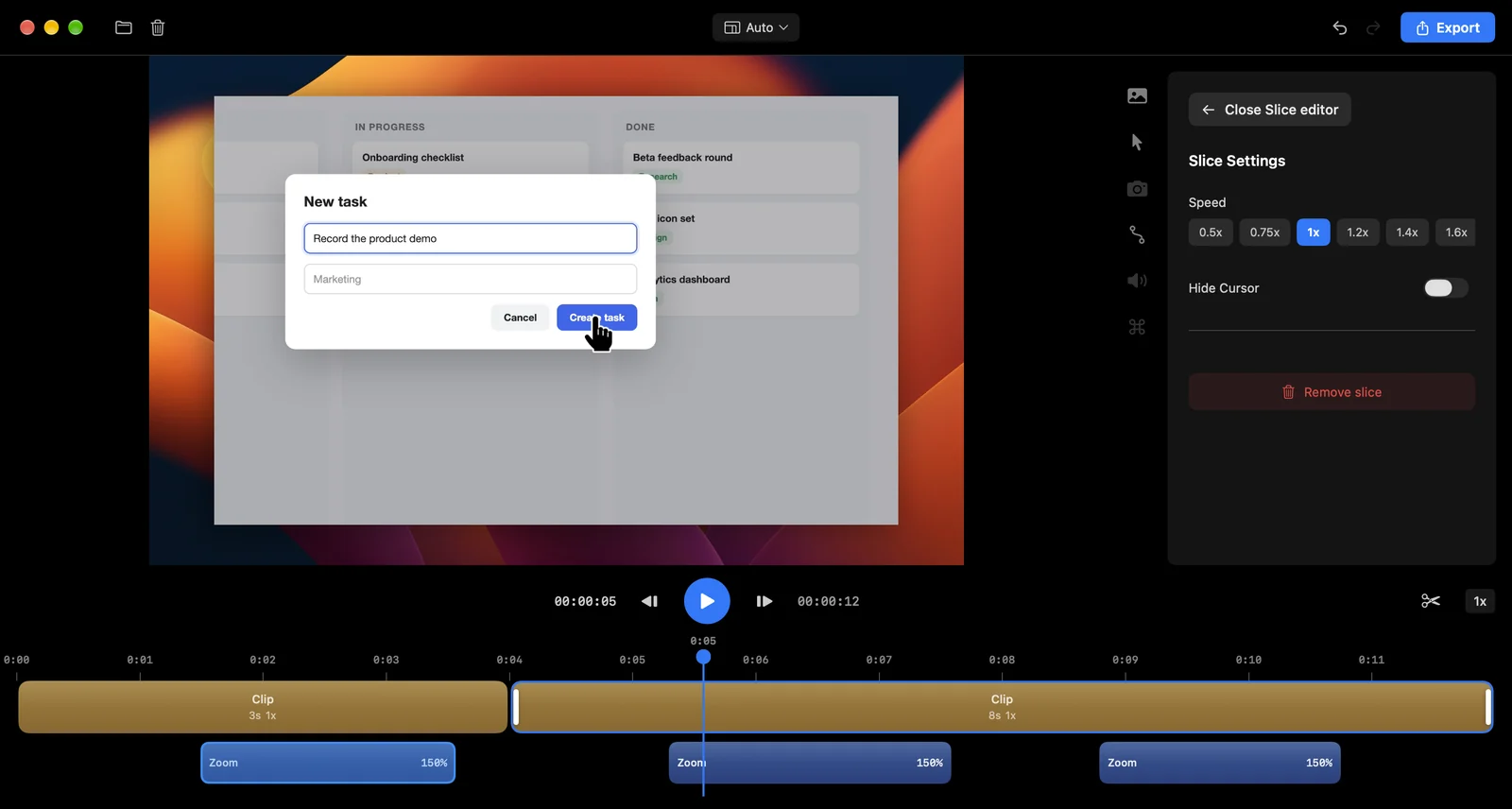
The timeline at the bottom of the editor shows your recording as one or more clips (gold), with zooms (blue) underneath.
Trim the start or end
Drag the left or right edge of the clip to cut off the beginning or the end.
Split into clips
- Click the scissors button next to the playback controls to turn on slice mode.
- Click the timeline where you want to cut. The clip splits at that point.
- Click the scissors again to turn slice mode off.
Change a clip
Click a clip to select it. The Slice Settings panel shows:
- Speed: from 0.5x to 24x. Speed up the slow parts, like waiting for something to load.
- Hide Cursor: hide the cursor for just this clip.
- Microphone Volume and Mute Microphone in Clip: lower or silence your voice for this clip only. These appear when the recording has microphone audio.
- Remove slice: delete this clip from the video. You can also press Delete. You can’t remove the last remaining clip.
Each clip on the timeline shows its length and speed, plus a crossed-out microphone when it’s muted.
To mute the microphone for the whole video, use the Microphone panel in the sidebar.
Undo anything
Every change can be undone with ⌘ Z and redone with ⌘ ⇧ Z, or with the arrows in the top bar. Your undo history is saved with the project, so it’s still there after you close and reopen it.
Playback shortcuts
| Action | Key |
|---|---|
| Play or pause | Space |
| Step back or forward one frame | ← → |
| Delete the selected zoom or clip | Delete |
The speed button next to the scissors changes preview speed (1x, 2x, 4x, 8x). It doesn’t change your video.