 Recap Studio
Export MP4 and GIF
When your video looks right, click Export in the top-right corner of the editor, or press ⌘ E. Exporting needs a Pro license.
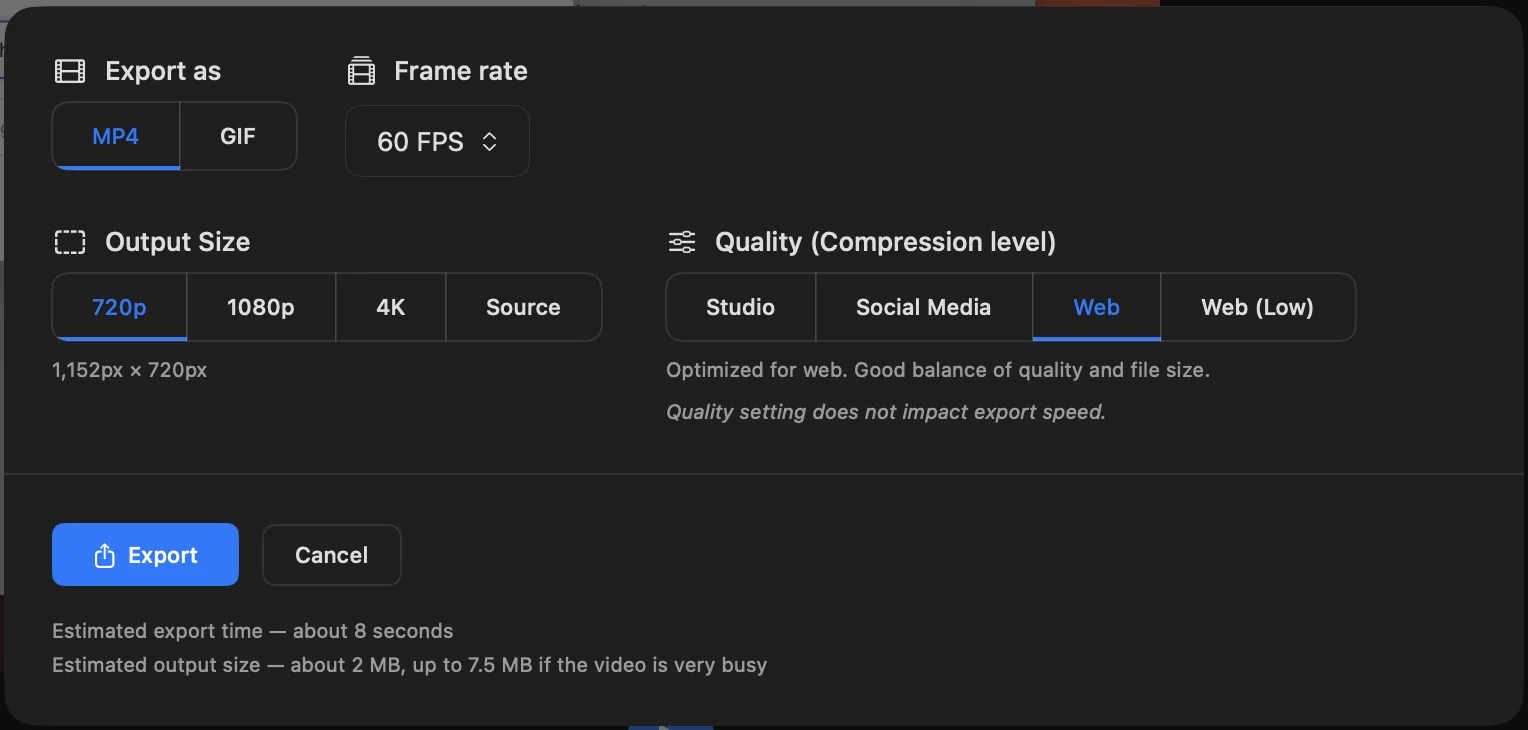
Choose the settings
- Export as: MP4 for most uses, or GIF for docs, READMEs and changelogs.
- Frame rate: MP4 from 10 to 60 FPS (30 by default); GIF at 10, 15 or 20 FPS.
- Output Size:
- MP4: 720p, 1080p, 4K or Source, the recording’s own size.
- GIF: 480p or 720p.
- The exact pixel size is shown underneath. For vertical videos, “1080p” means 1080 pixels across.
- Quality (Compression level): MP4 only.
| Quality | Best for |
|---|---|
| Studio | Highest quality, for keeping or editing further |
| Social Media | Sharing on social media (default) |
| Web | Websites, a good balance of quality and size |
| Web (Low) | The smallest files, with visible compression |
Quality doesn’t change how long the export takes. The window shows an estimated export time and file size before you start.
For GIFs, Loop forever is on by default. GIFs longer than a minute can use a lot of memory while exporting, so a shorter clip or an MP4 is safer.
Save and find your file
Click Export and choose where to save it. The file is named with the date and time, like Recap_2026-11-07_14-30-00.mp4, and the window opens in the folder you used last.
While it exports you’ll see the progress and the time left. Click Cancel to stop. When it’s done, click Show in Finder to go to your file.
If an export fails, click Try Again. See Troubleshooting if it keeps happening.