 Recap Studio
Troubleshooting
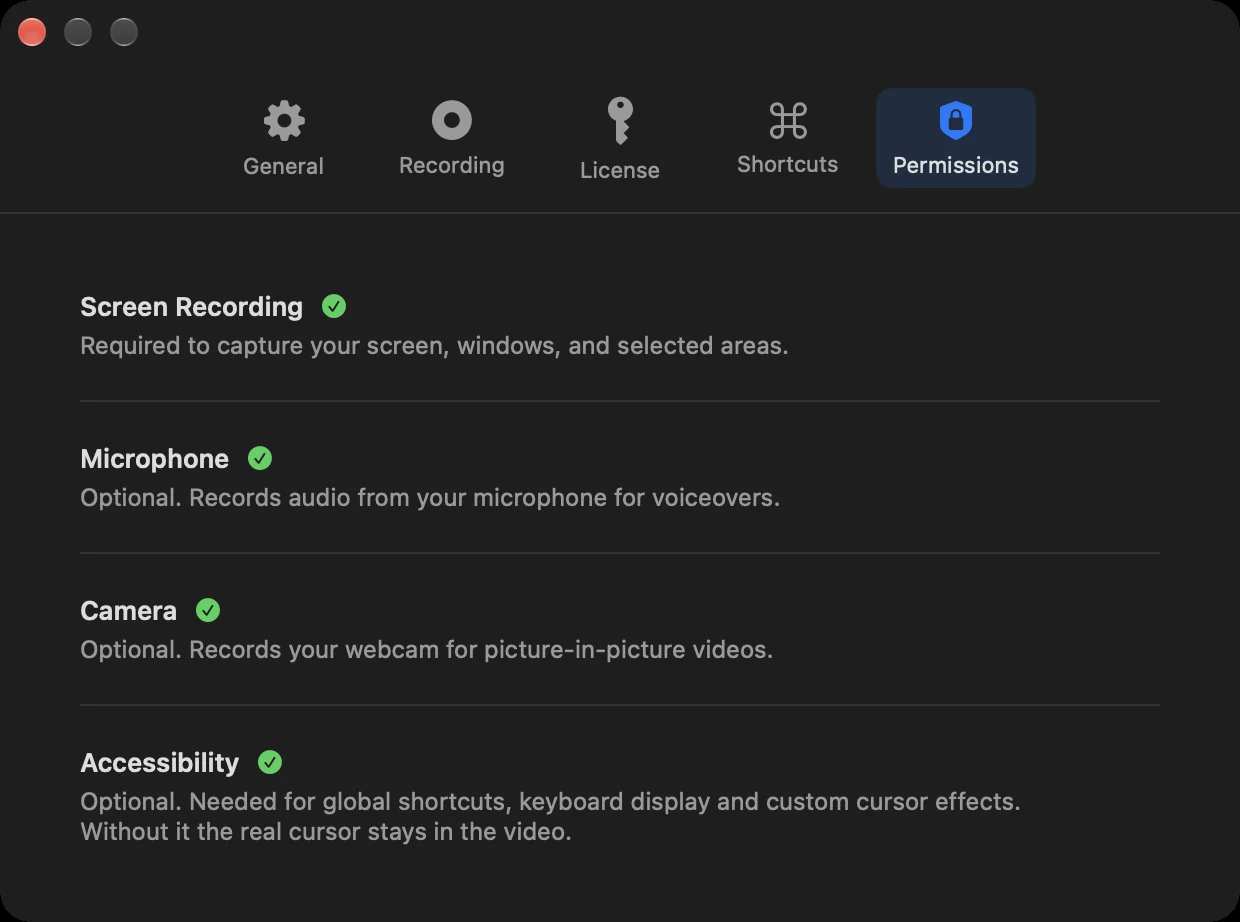
Most problems come down to a permission. Settings › Permissions shows what’s allowed, with an Open Settings button for anything that isn’t.
”Screen recording permission is required”
- Open System Settings › Privacy & Security › Screen Recording.
- Switch on Recap Studio.
- Quit Recap Studio and open it again. macOS only applies this permission after the app restarts.
If Recap Studio is already on in the list but still can’t record, switch it off and on again, then restart the app.
No microphone or camera in my recording
- Check the Microphone and Camera menus in the control bar. “No microphone” or “No camera” means it’s turned off.
- If the menu says Allow Microphone Access… or Allow Camera Access…, click it and allow access.
- If you see No cameras found, check the camera is connected, and close other apps that might be using it.
- During recording, an orange warning above the recording controls tells you if a device stops sending audio or video.
No system audio
Open the System audio menu in the control bar and choose Record system audio. If the label says “No system audio”, it’s turned off.
The cursor can’t be changed, or shortcuts don’t work
Cursor effects, on-screen shortcut labels and the global recording shortcuts need the Accessibility permission. Allow it in System Settings › Privacy & Security › Accessibility, then make a new recording. Recordings made without it keep the original cursor.
The countdown or controls get in the way
The countdown, control bar and recording controls never appear in your video. Press Esc to cancel a countdown, or turn it off in Recording settings.
”Recording Stopped Early”
This happens if something interrupts the recording, like a display being unplugged or the disk filling up. Everything recorded until then is saved, and the editor opens with it.
Export failed
- Click Try Again.
- Make sure there’s enough free disk space where you’re saving.
- For long GIFs, export a shorter clip or use MP4 instead.
License problems
See Activate your Pro license for device limits, moving to a new Mac and offline use. If the app says Couldn’t Verify Your License, connect to the internet and click Retry.
Still stuck?
Email idnan.se@gmail.com with what you were doing and any message you saw. You can also use Send feedback in the Recap Studio menu.